Here is another Tutorial, we are to learn two(2) basic things.
- How To Install The JDK Software And Set JAVA_HOME On A Windows System And
- A UNIX System
- To Install the JDK Software and Set JAVA_HOME on a Windows System
Install the JDK software:
Go to http://java.sun.com/javase/downloads/index.jsp.
Select the appropriate JDK software and click Download.
The JDK software is installed on your computer, for example, at C:\Program Files\Java\jdk1.6.0_02. You can move the JDK software to another location if desired.
Set JAVA_HOME:
If you installed the Java Development Kit (JDK) you'll be setting the JAVA_HOME environment variable. If you installed the Java Runtime Environment (JRE) you will follow the same steps but set the JRE_HOME environment variable instead.
To set the JAVA_HOME variable:
- Find out where Java is installed. If you didn't change the path during installation, it will be something like this:
C:\Program Files\Java\jdk1.8.0_65
- In Windows 7 right click My Computer and select Properties > Advanced.
In Windows 8 go to Control Panel > System >Advanced System Settings.
- Click the Environment Variables button.
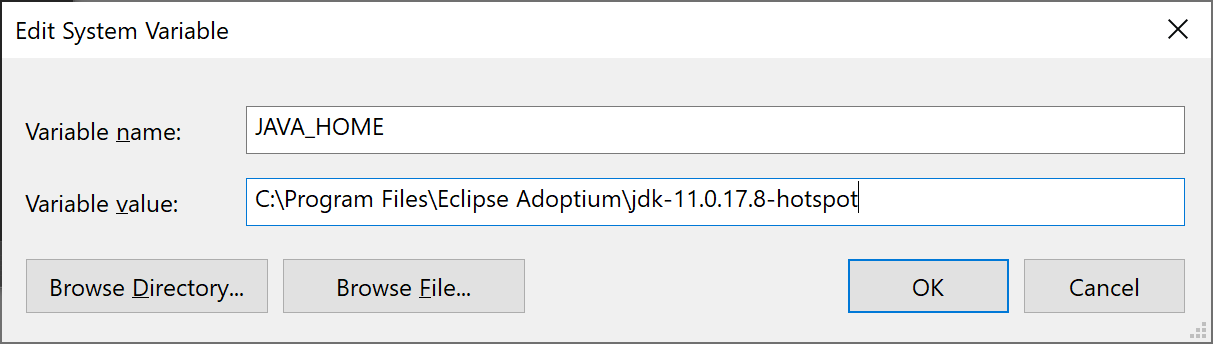
- Under System Variables, click New.
- In the Variable Name field, enter:
JAVA_HOME if you installed the JDK (Java Development Kit)
orJRE_HOME if you installed the JRE (Java Runtime Environment)
In the Variable Value field, enter your JDK or JRE installation path.
If the path contains spaces, use the shortened path name, for exampleC:\Progra~1\Java\jdk1.8.0_65)
Note for Windows users on 64-bit systems
Progra~1 = 'Program Files'Progra~2 = 'Program Files(x86)'
- Click OK and Apply Changes as prompted.
You'll need to close any re-open any command windows that were open before you made these changes as there's no way to reload environment variables from an active command prompt. If the changes don't take effect even after reopening the command window, restart Windows.
- To Install the JDK Software and SetJAVA_HOME on a UNIX System
Install the JDK software.
Go to http://java.sun.com/javase/downloads/index.jsp.
Select the appropriate JDK version and click Download.
The JDK software is installed on your computer, for example, at /usr/jdk/jdk1.6.0_02. You can change this location.
Set JAVA_HOME.
Korn and bash shells:
export JAVA_HOME=jdk-install-dir export PATH=$JAVA_HOME/bin:$PATH
Bourne shell:
JAVA_HOME=jdk-install-dir export JAVA_HOME PATH=$JAVA_HOME/bin:$PATH export PATH
C shell:
setenv JAVA_HOME jdk-install-dir setenv PATH $JAVA_HOME/bin:$PATH export PATH=$JAVA_HOME/bin:$PATH
Change the permissions to enable you to run the GlassFish ESB Installer.
chmod 755 JavaCAPS.bin


